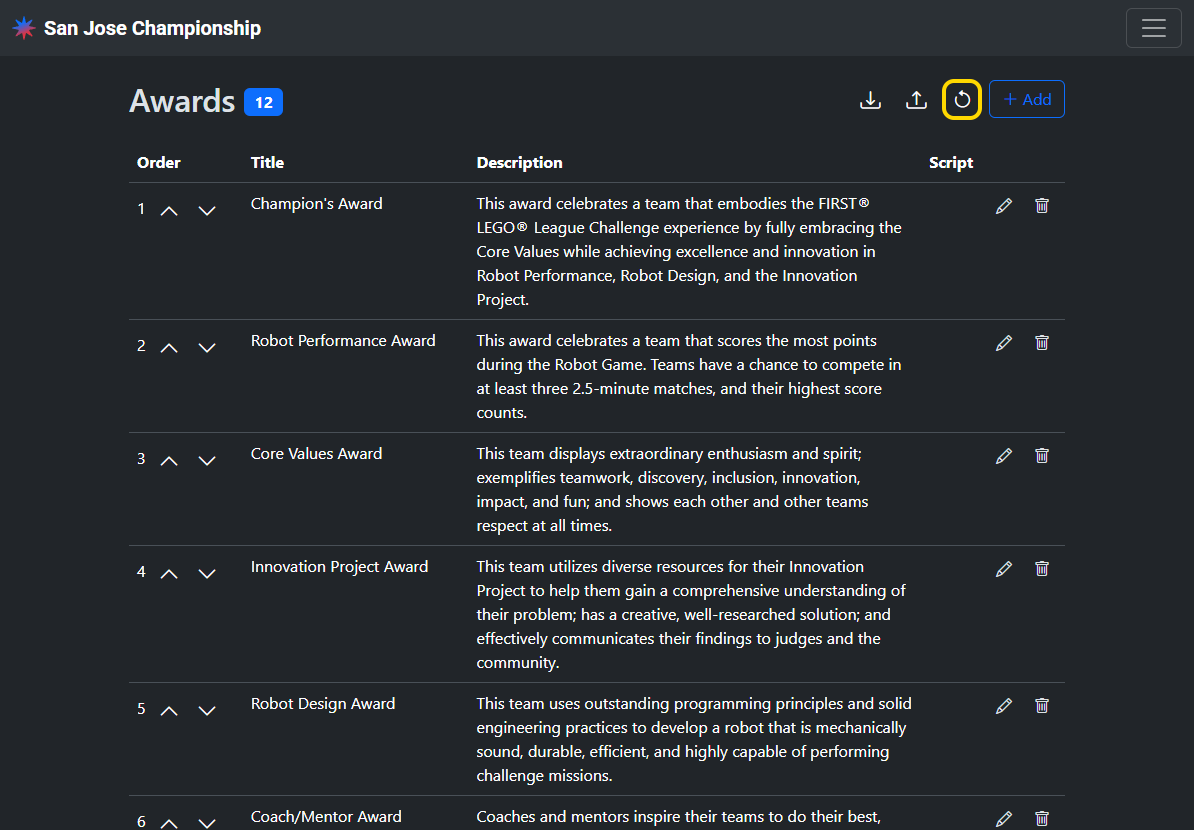
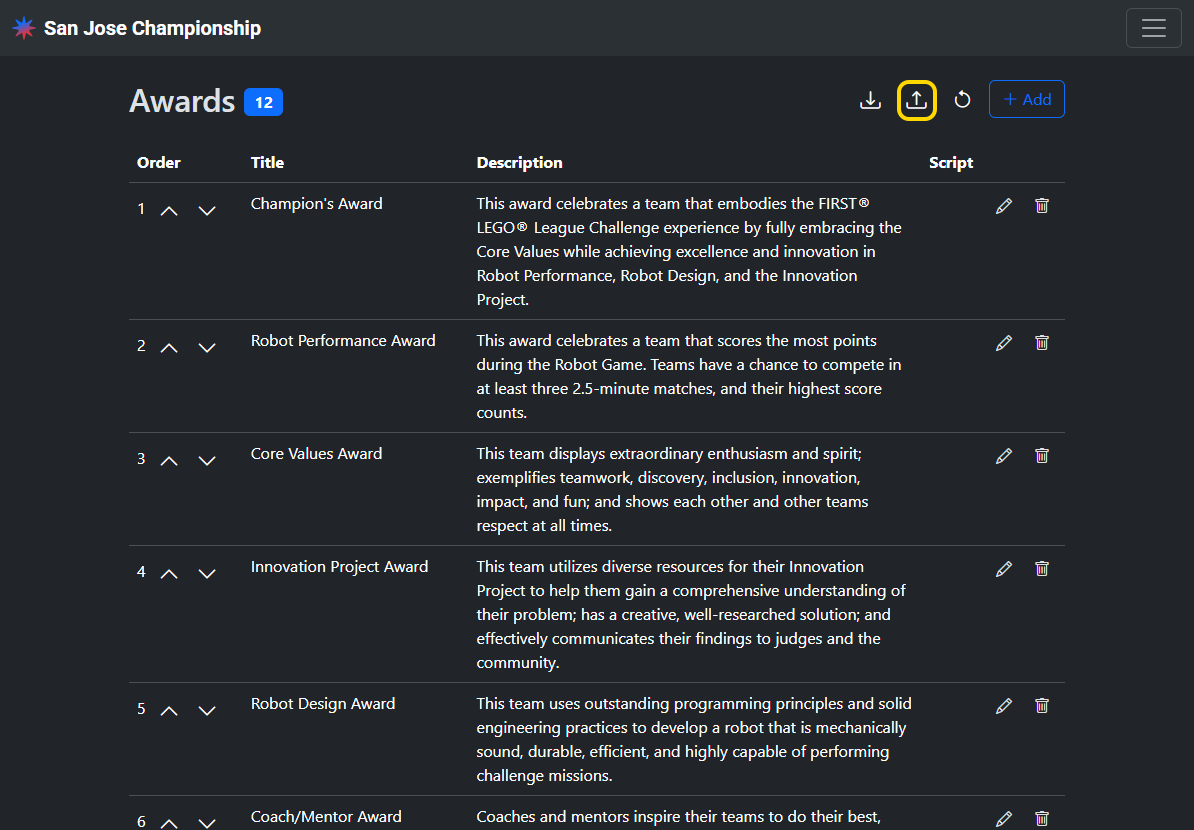
Judges advisors can customize the awards list in Nexus. The awards can then be assigned to teams.
Access
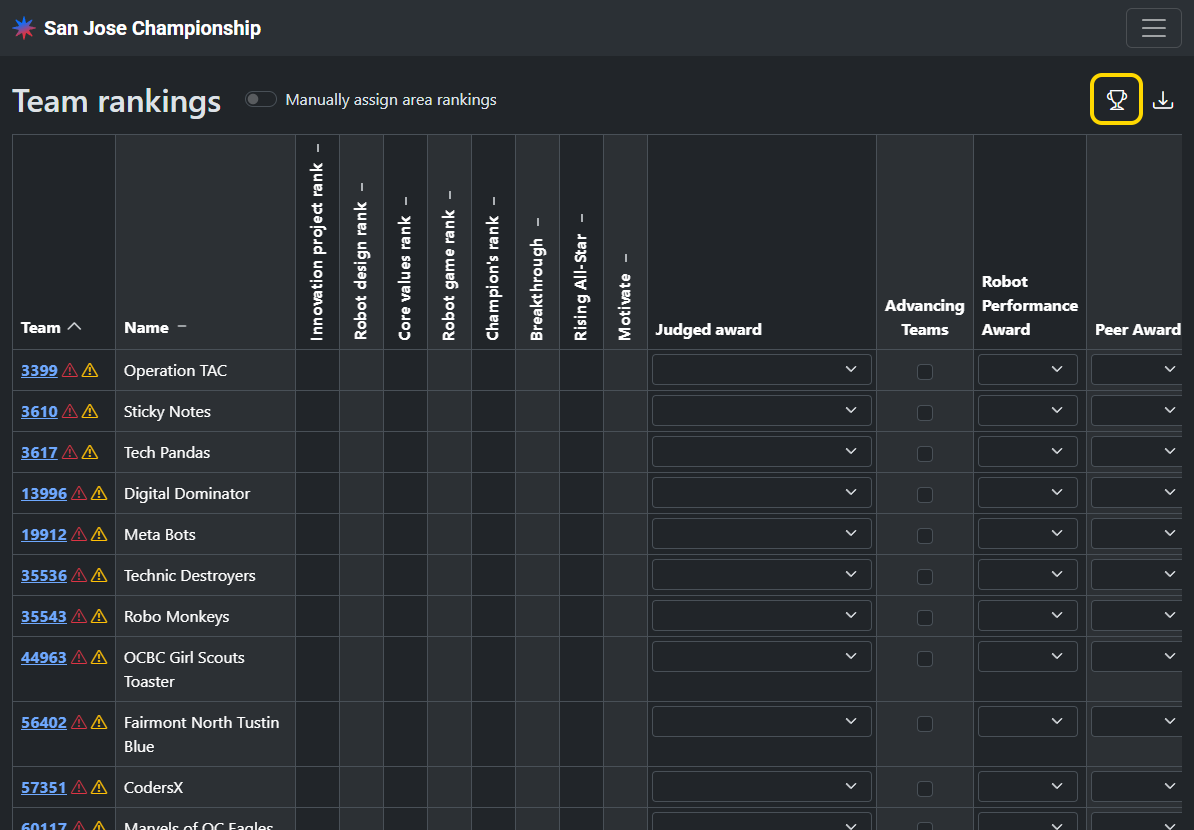
Volunteers with the Judge advisor role can manage awards. From the team rankings page, tap the trophy icon.
Add
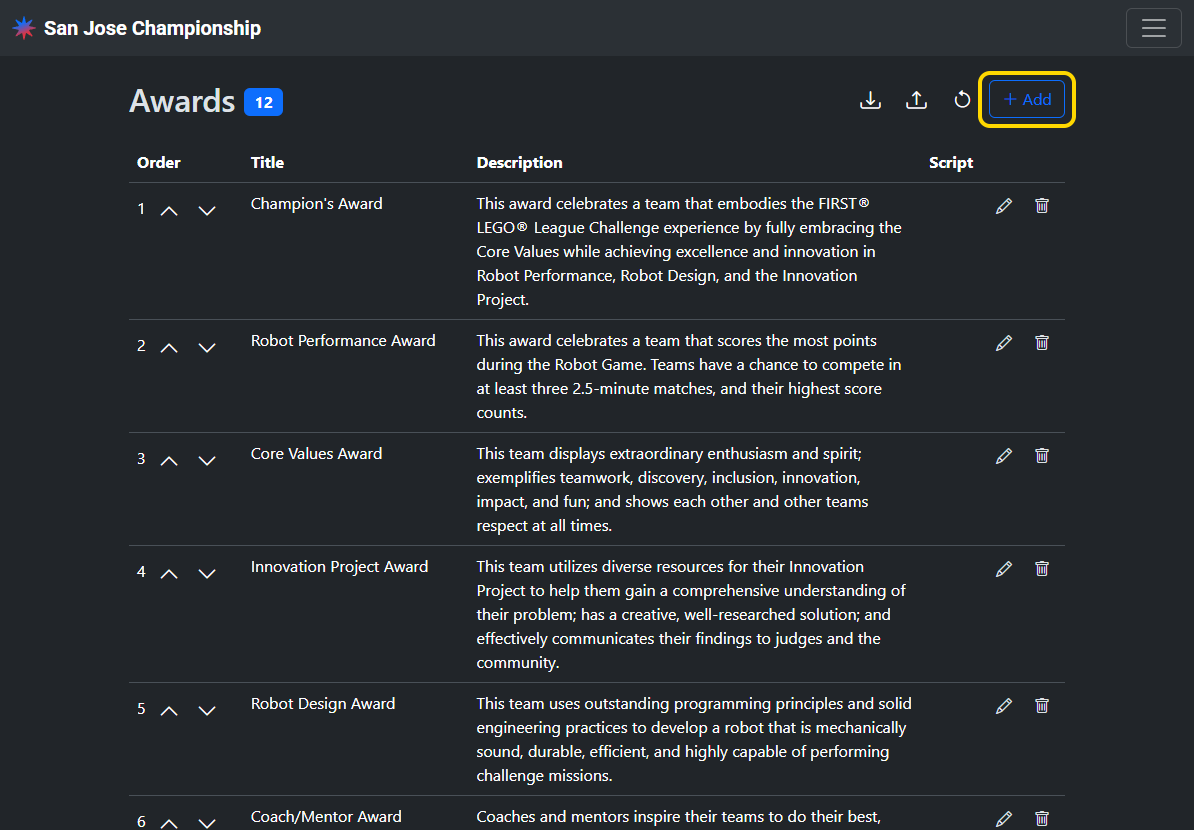
Click “Add” to add a new award.
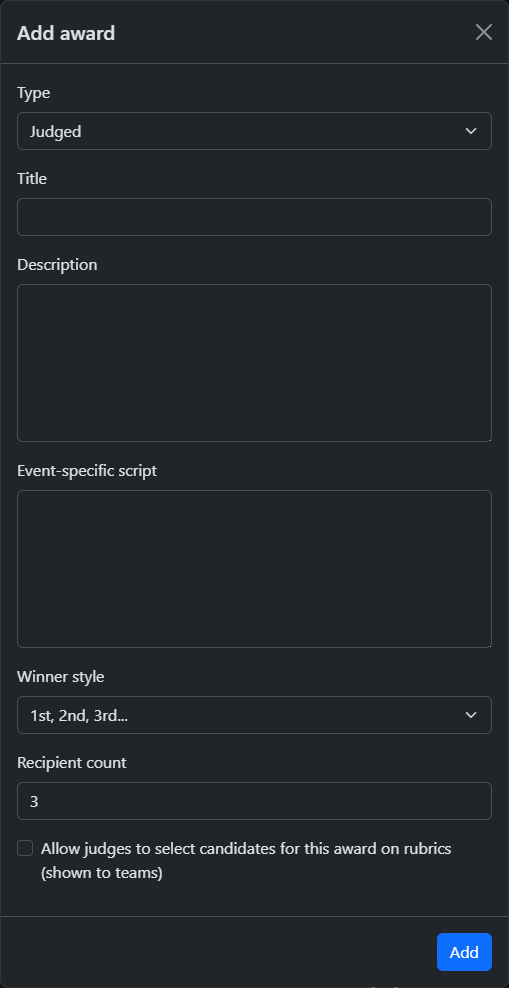
Enter the award details:
- Type
- Judged: All awards decided by judges. Each team can only win a single judged award. (e.g. Champion’s award)
- Individual: All awards that are awarded to a specific individual (e.g. Coach/mentor award)
- Advancement: A yes/no indicator that can be used to show the teams that qualify for advancement to a next-level event
- Other: All awards that do not fit into the above categories. Each team can win any number of “other” awards in addition to a single judged award. (e.g. Robot Performance Award)
- Title: The award name
- Description: The award description displayed on the awards PDF under the award title
- Event-specific script: Additional text displayed on the awards PDF below the award description
- Winner style: how to display multiple award winners
- 1st, 2nd, 34d… (ordinal)
- Winner(s), Finalist(s)
- Recipient count: the maximum number of winners that can be assigned to this award without showing a warning
- Allow judges to select candidates for this award on rubrics: whether this award is included on rubrics as an option for judges (by default: Breakthrough, Rising all-star, Motivate)
Edit
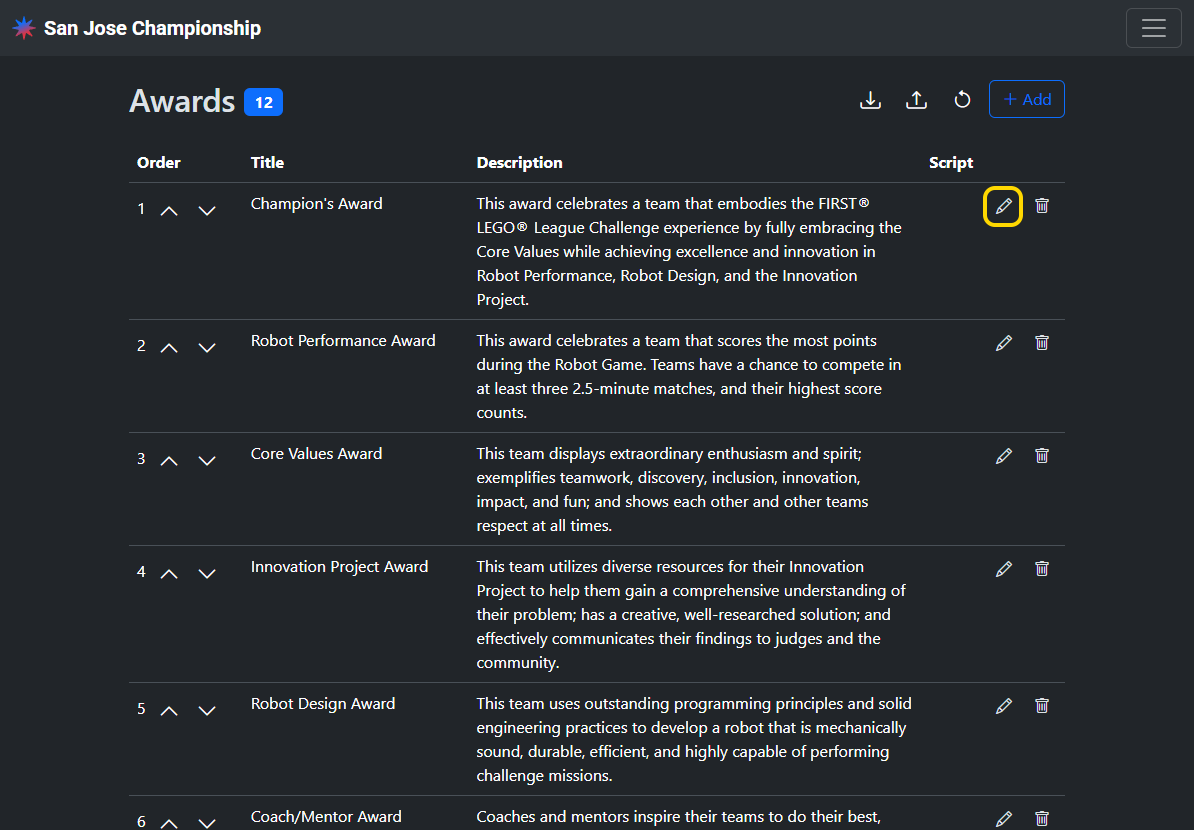
Click the pencil icon next to the award you want to edit. Some fields cannot be edited after the award has been assigned to a team.
Remove
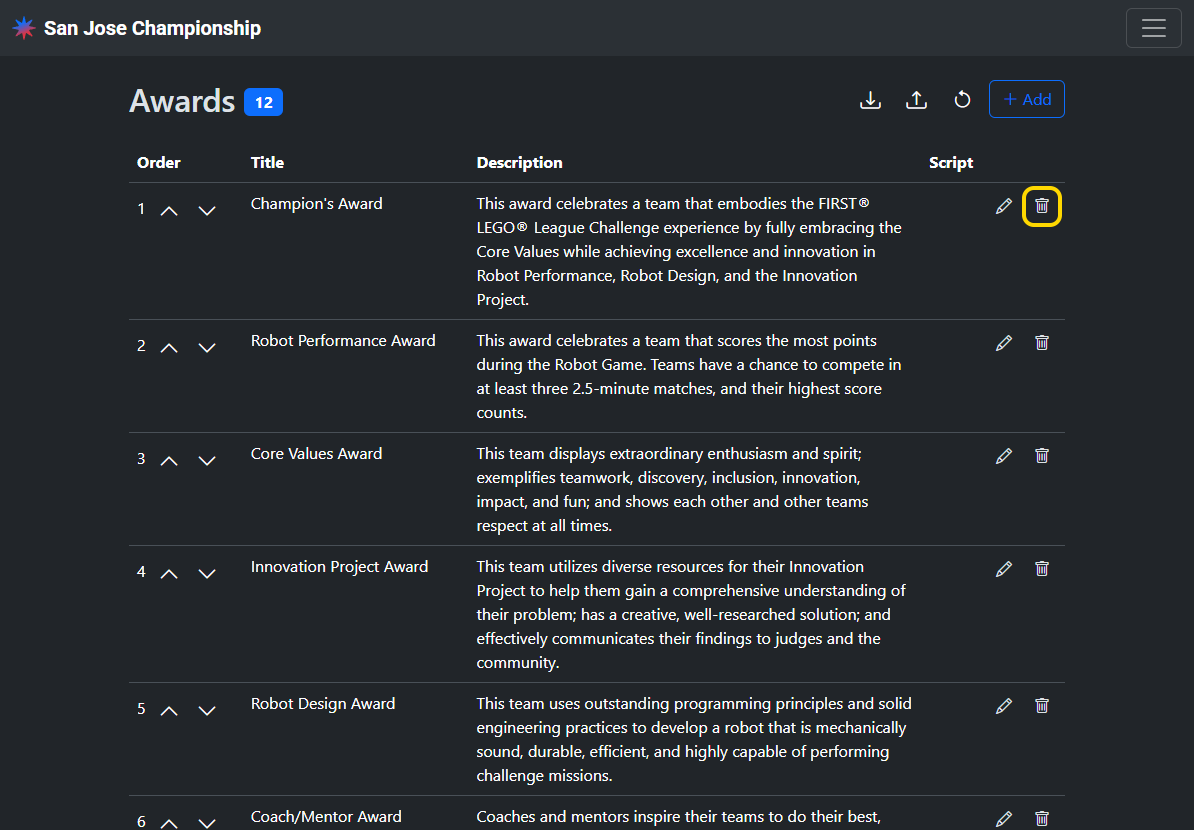
Click the trash icon next to the award. Only awards that are not assigned can be removed.
Reorder
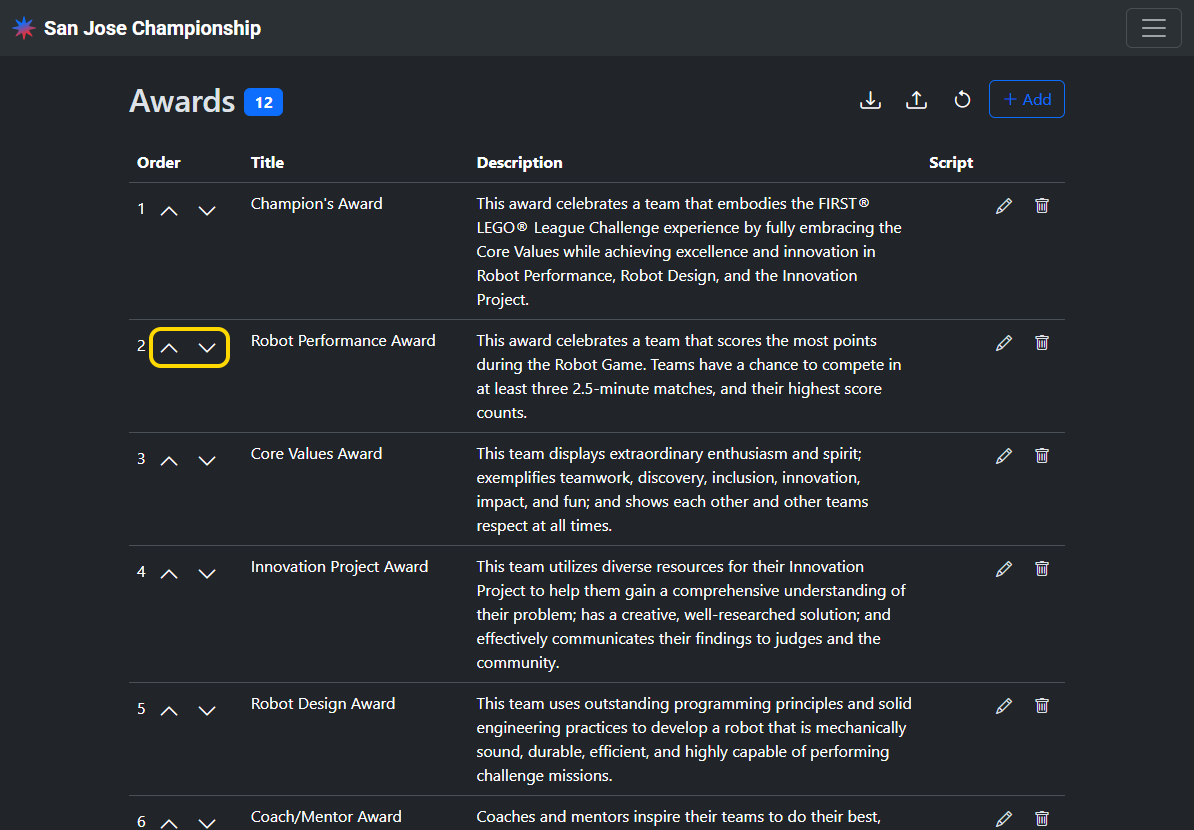
Click the up and down arrows next to the award you want to move. This is the order that is used on the awards PDF.
Export
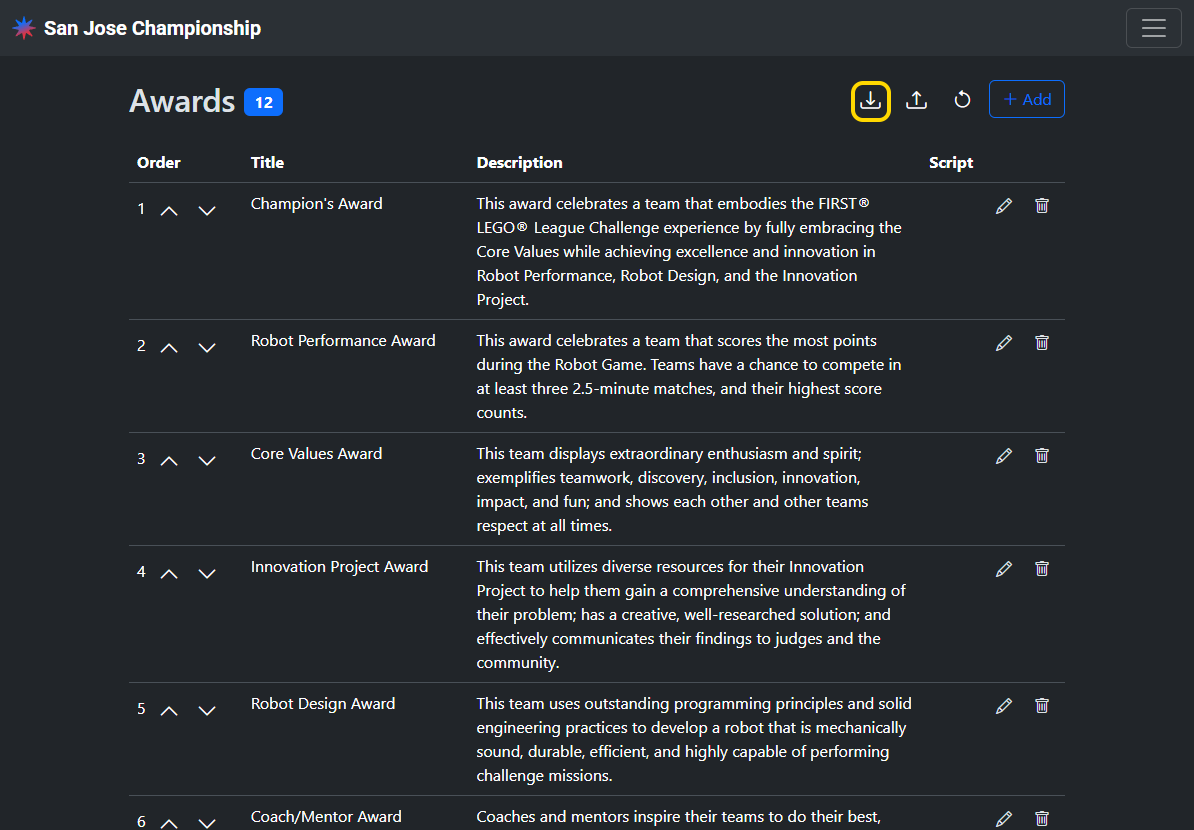
Click the “download” icon in the top right to download a CSV of the awards configuration.
Import
Click the “upload” icon in the top right to upload a CSV of the awards configuration. Awards can only be imported if no awards have been assigned yet.
Reset to default
Click the “reset” icon in the top right to undo all changes to the awards config and reset it to the default configuration.